How to Convert Markdown to Word
In this tutorial, we will show you how to convert a Markdown file to a Word document using Sally.
Step 1: Open the Markdown to Word Side Panel
Click on the Markdown to Word menu item in the Sally tab, and the side panel will appear.

Step 2: Input Markdown Code
You have two ways to input Markdown code:
- Copy the Markdown code you want to convert and paste it into the input box, then click the
Convertbutton. - You can also upload a Markdown file by clicking the
Attach Filebutton and selecting the file from your computer.
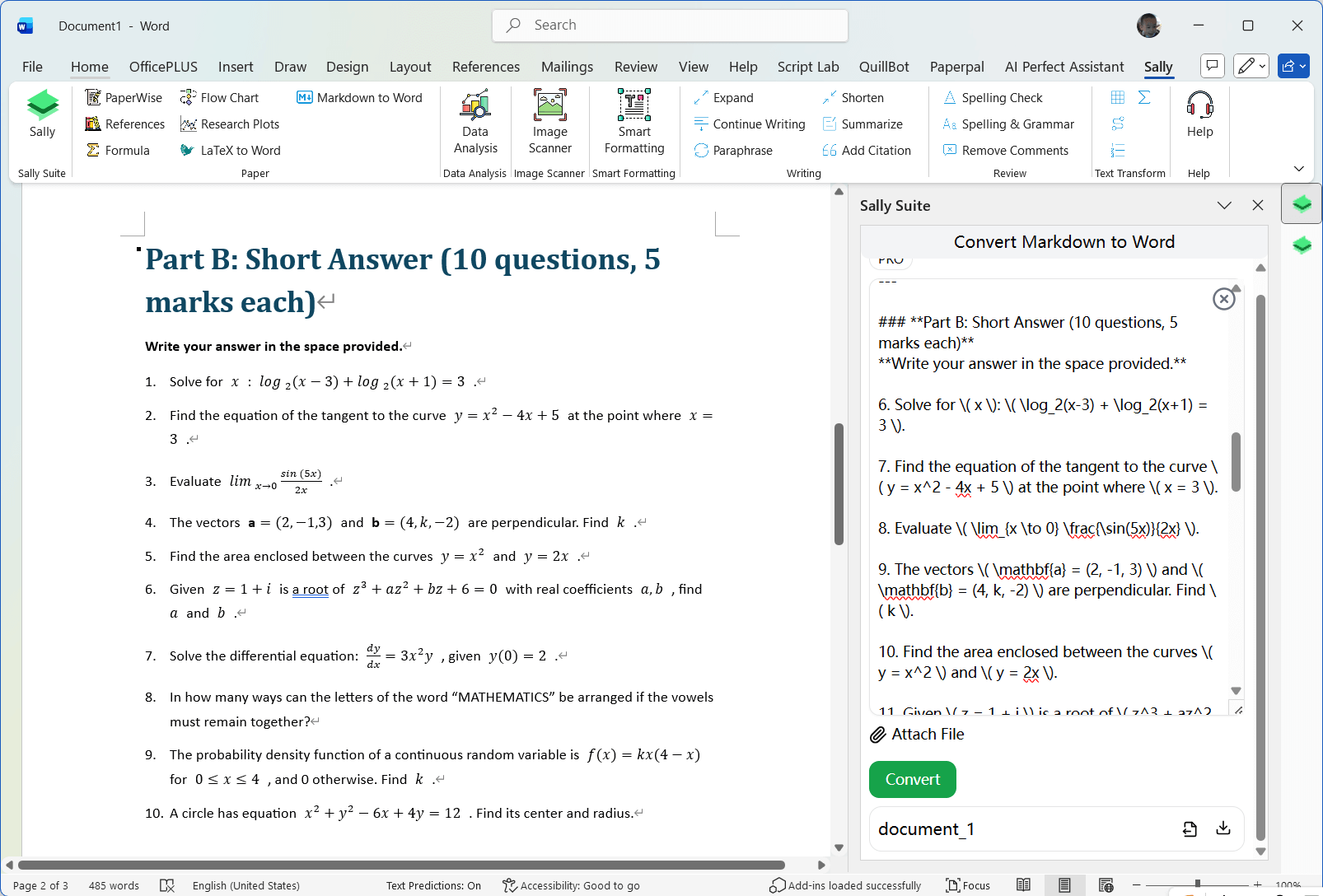
Step 3: Configure Conversion Settings
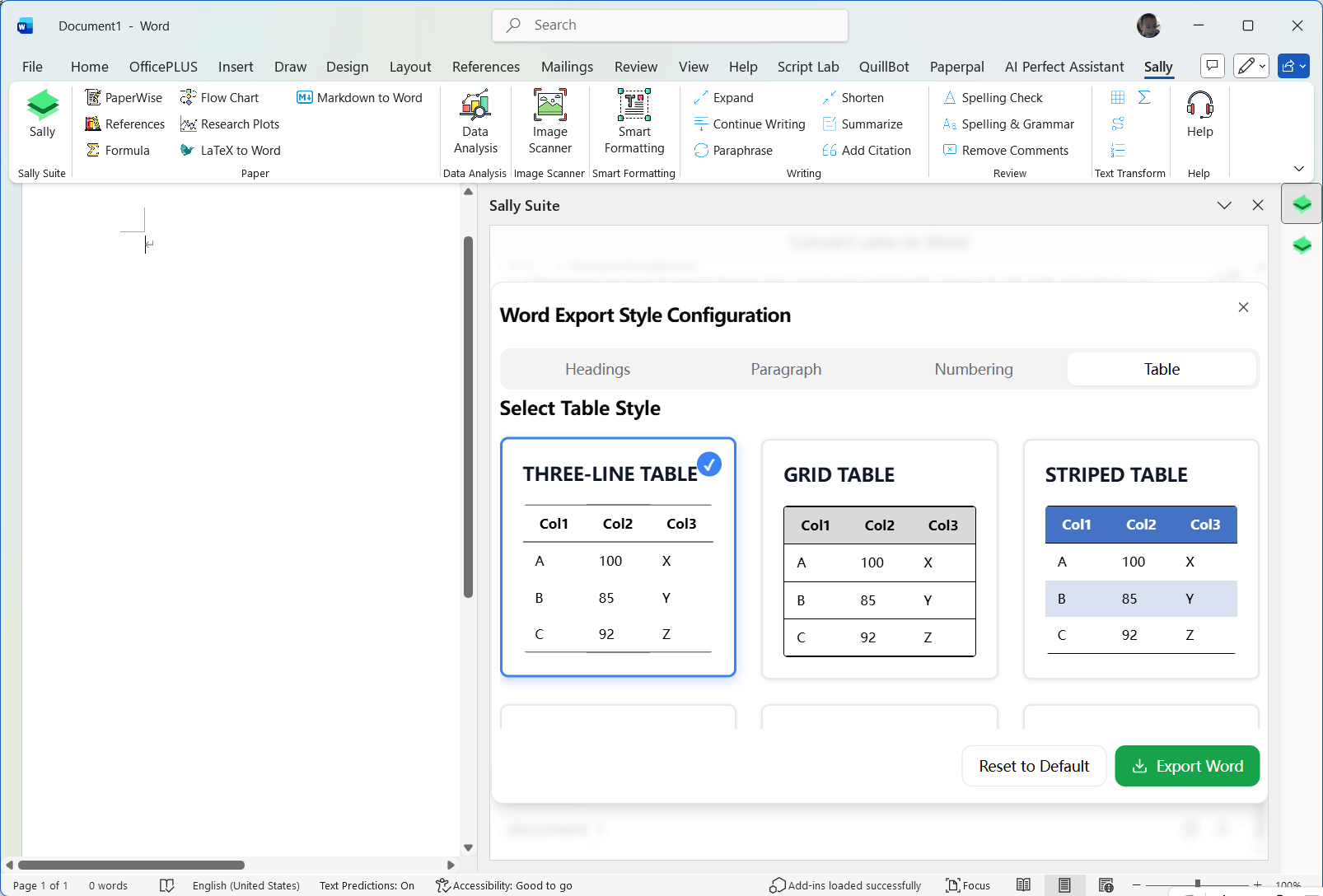
You can customize the conversion format by configuring various style options such as headings, paragraphs, numbering, tables, and more.
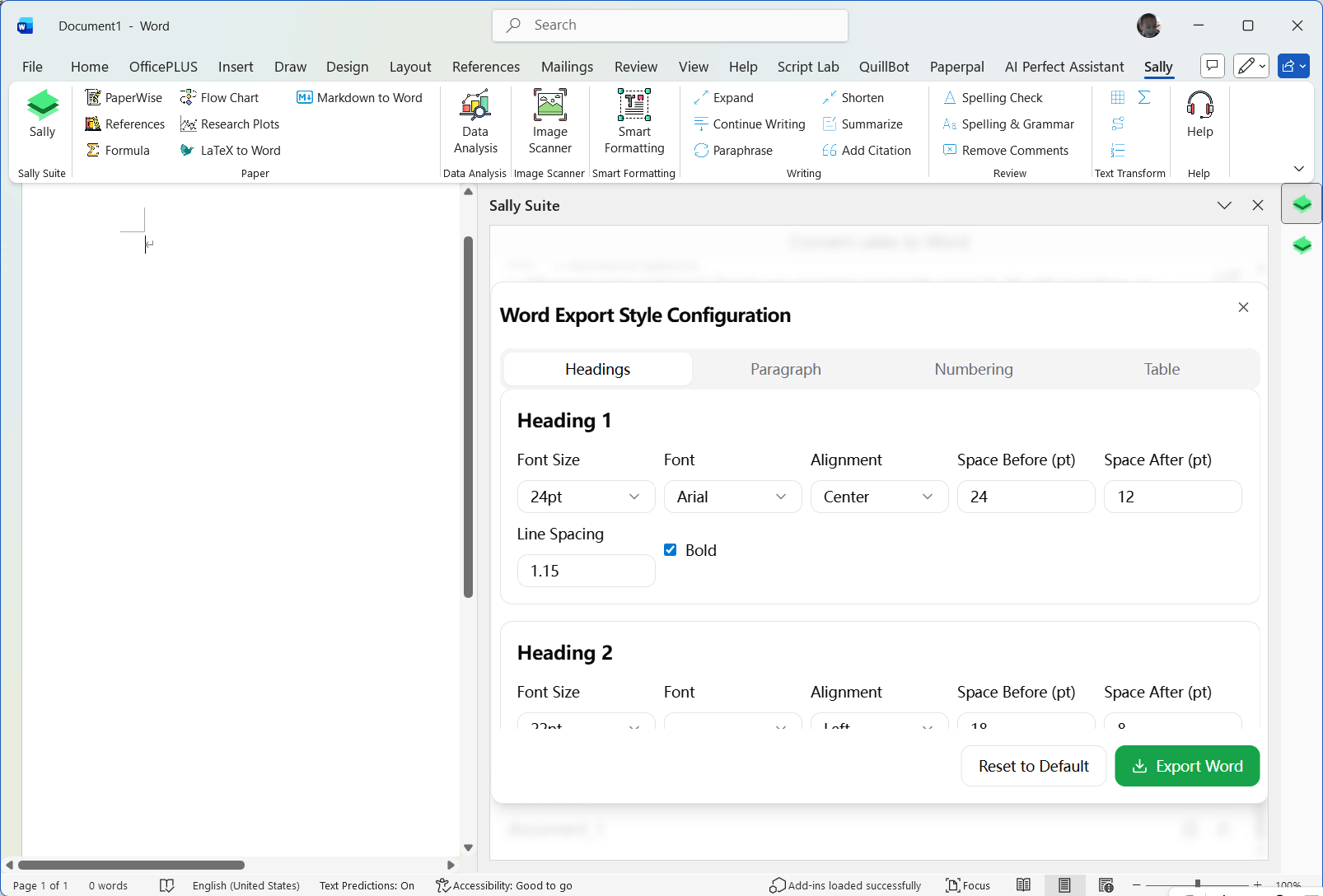
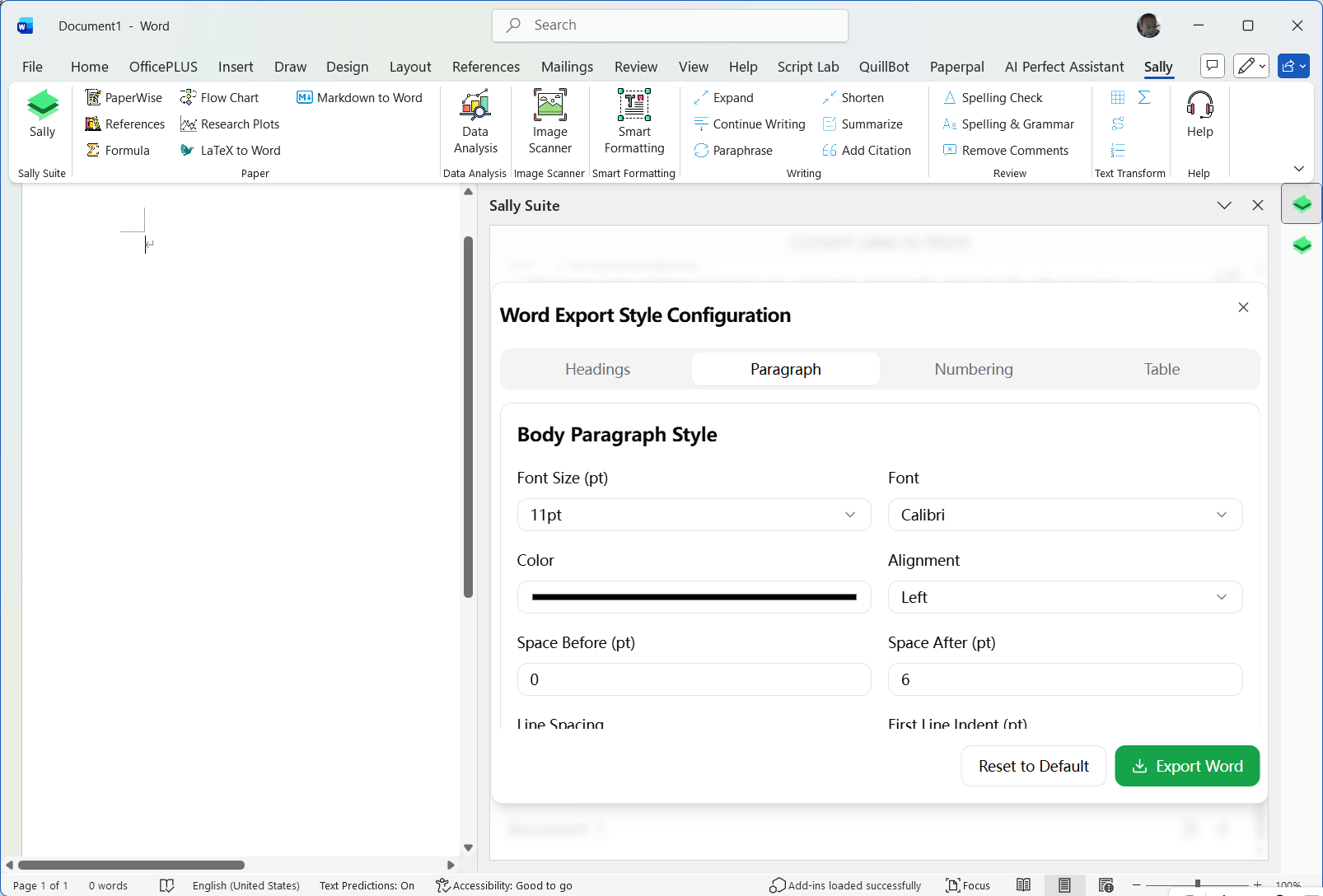
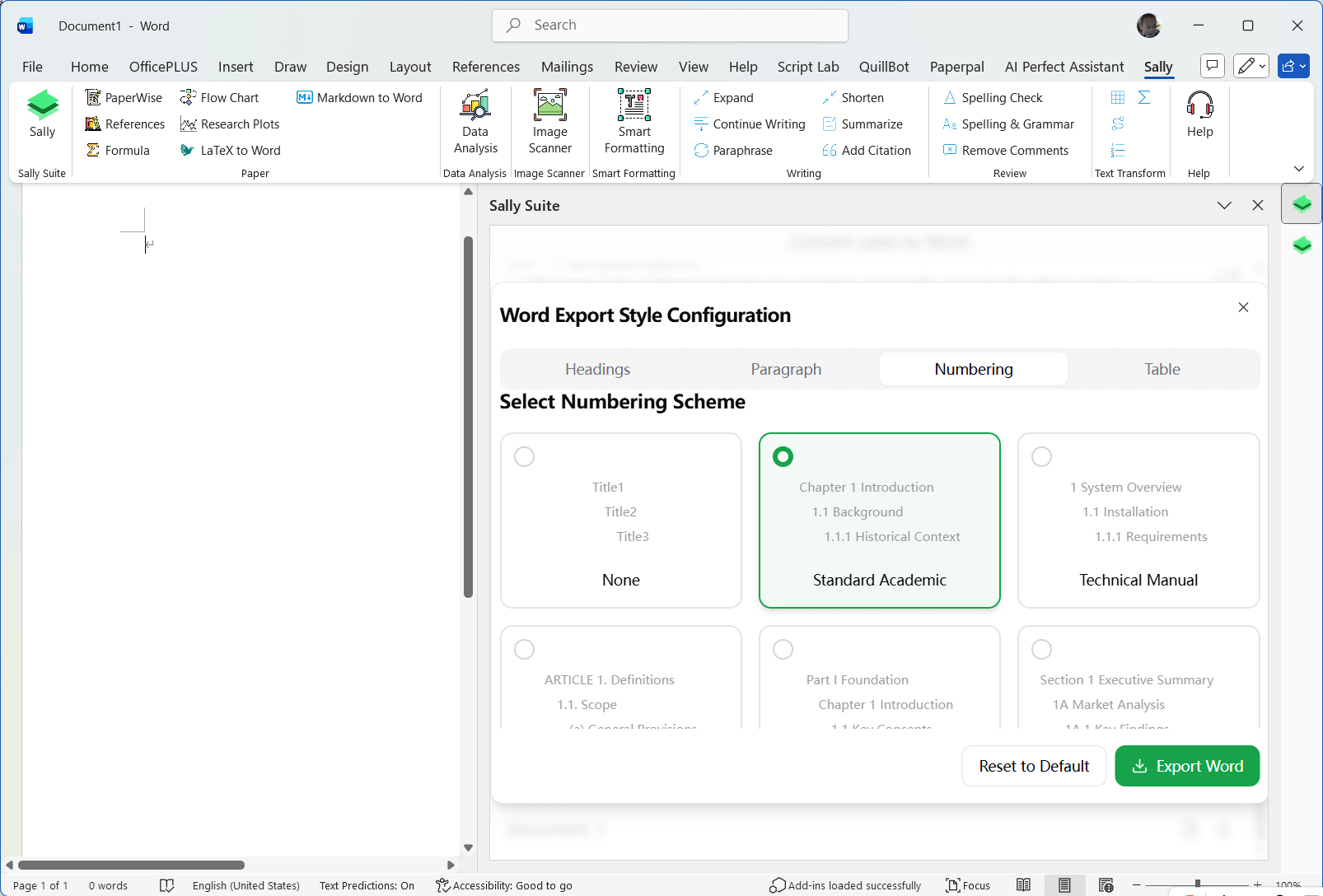
Step 4: Convert Markdown to Word
After you have input the Markdown code or uploaded the file, click the Convert button to start the conversion process.
Step 5: View the Converted Word Document
Once the conversion is complete, you can click on the icon button to insert the result into the current document or download a new document.
Note: The numbering settings only take effect when you download the document. If you insert the result directly into the current document, the numbering settings will not be applied.
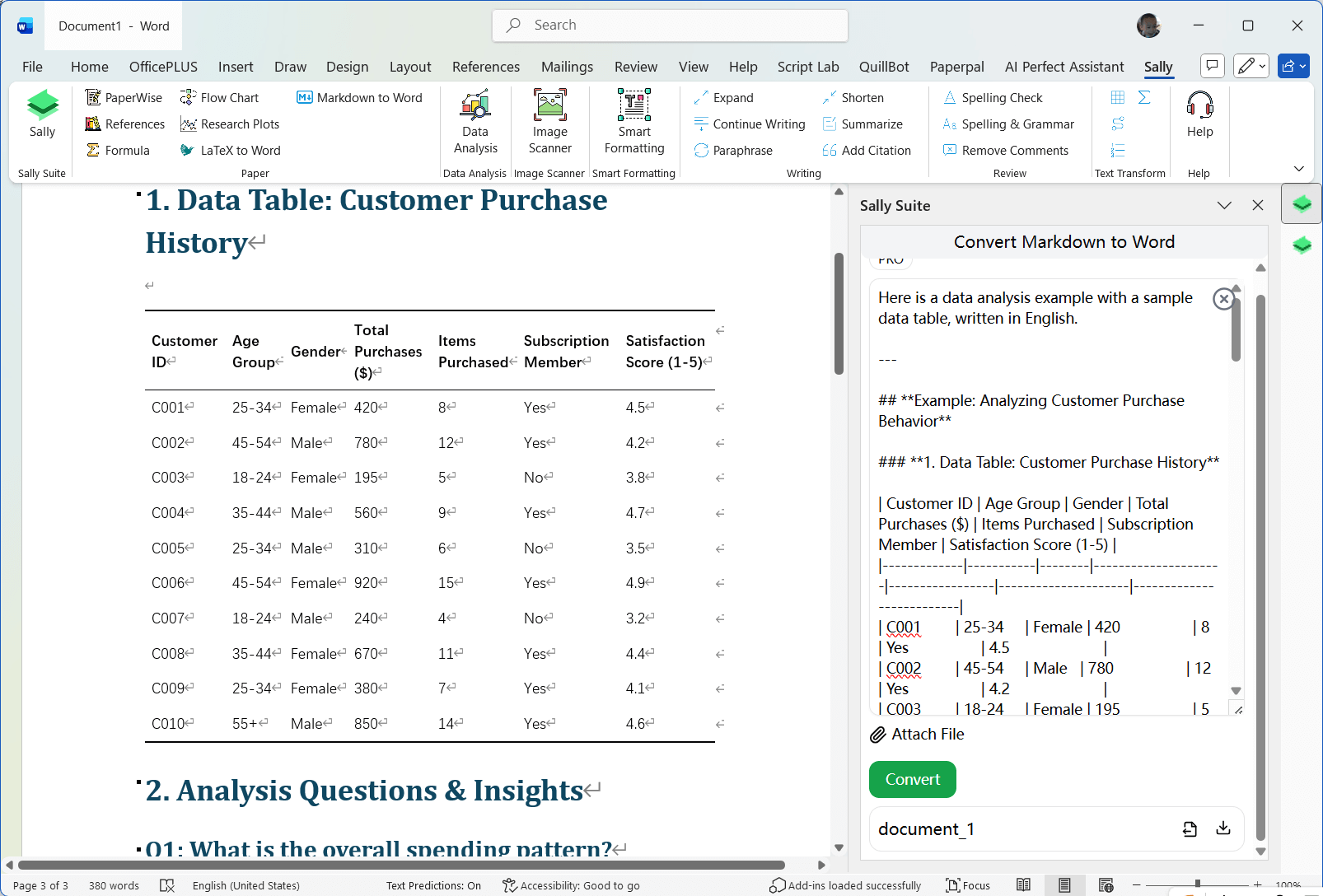
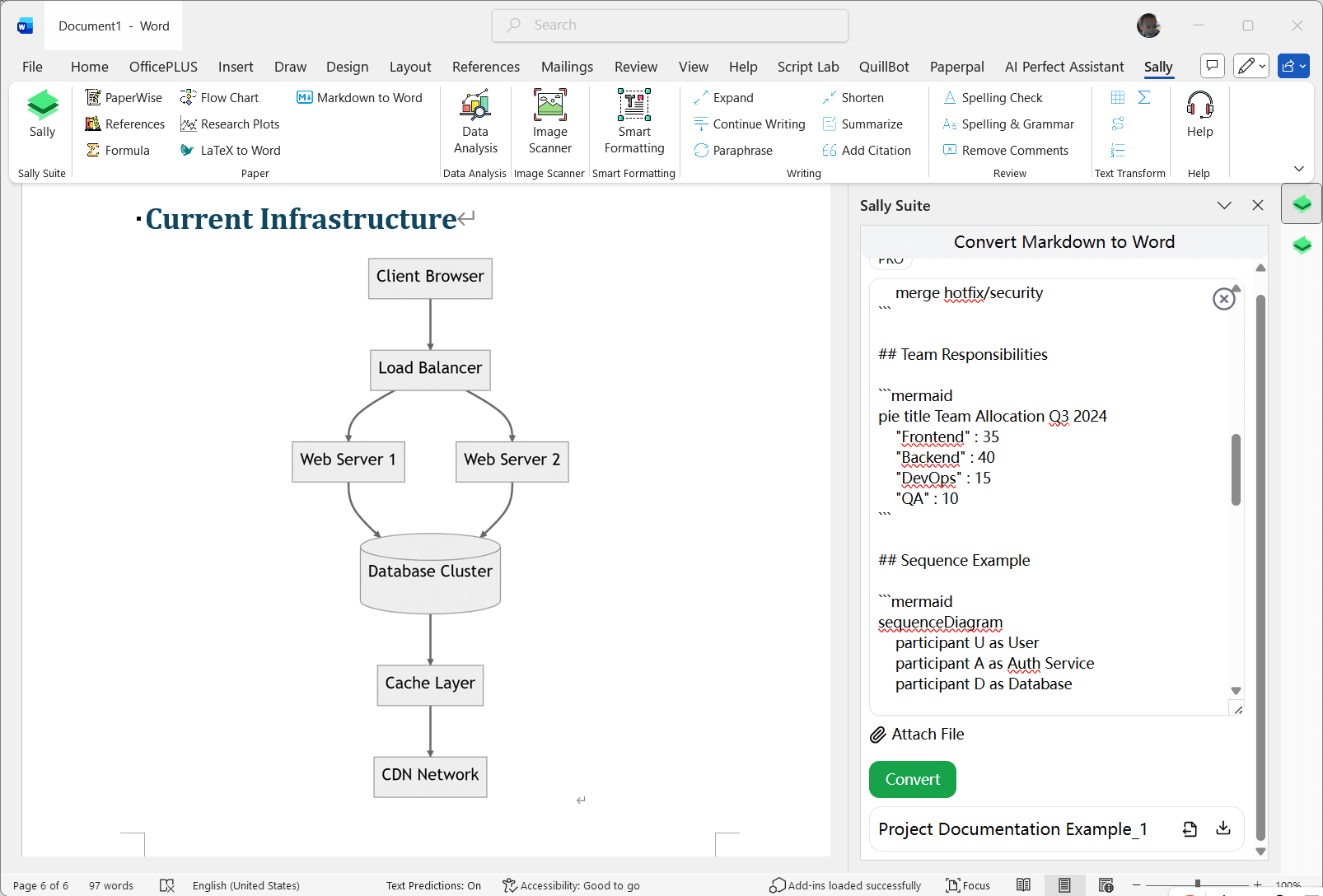
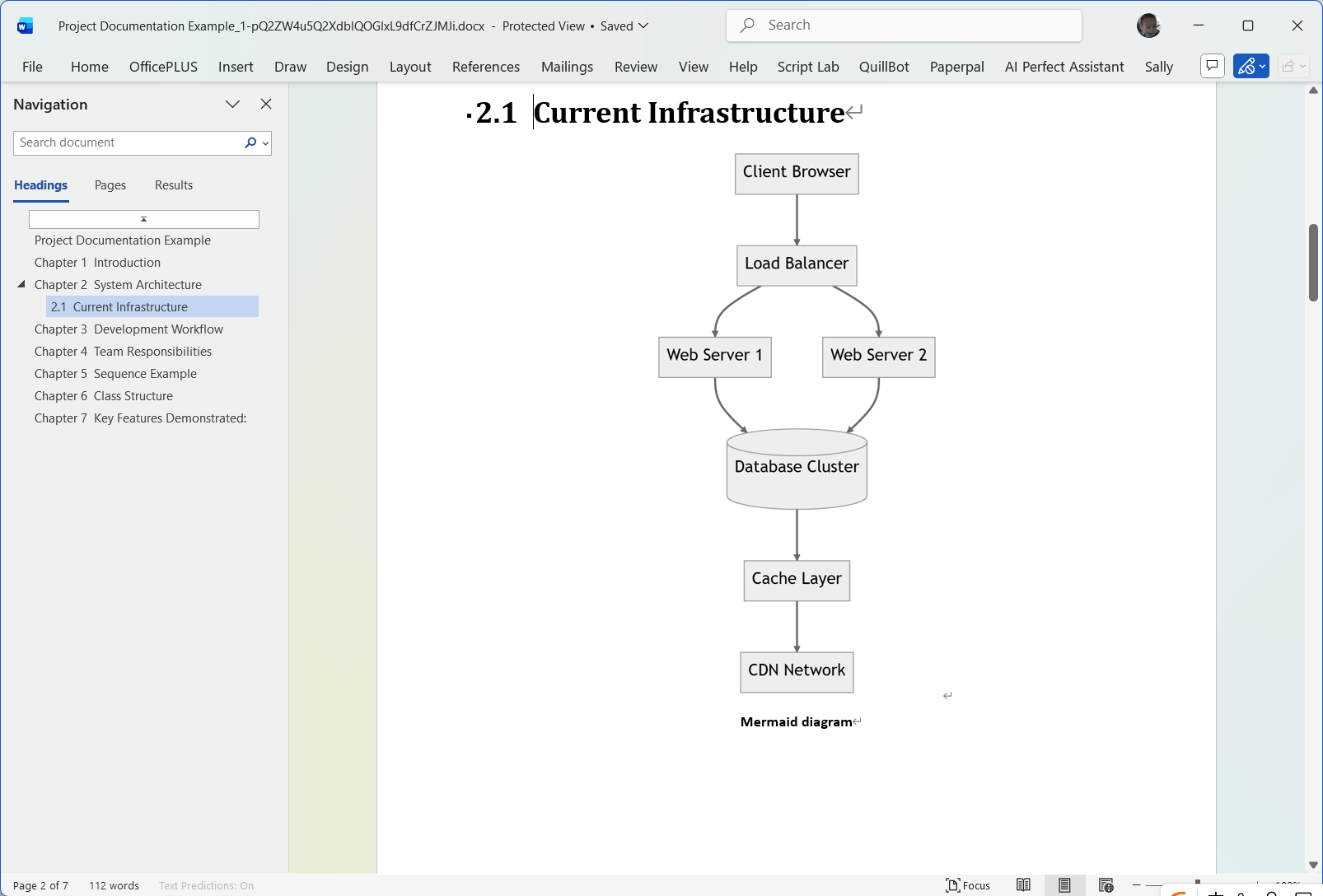
Here are some examples, including tables, equations, Mermaid diagrams, and numbering.
Step 6: Review the Converted Word Document
Sally can convert most Markdown code to Word, but some complex Markdown syntax may not be converted perfectly. You can review the converted Word document and make any necessary adjustments.
Sally can convert the following Markdown elements to Word:
- Headings
- Math equations
- Tables
- Lists
- Code blocks
Conclusion
Converting Markdown to Word is a simple process with Sally. Just follow the steps above, and you will have your Markdown code converted to a Word document in no time.