How to Number Equations in Word
Recently, many users have requested the ability to add numbering to equations. We have now launched this feature in Sally. This tutorial will demonstrate how to number equations in Microsoft Word.
Open the Equation Numbering Sidebar
To get started, find Equation Numbering in the Sally menu and click to open the sidebar.
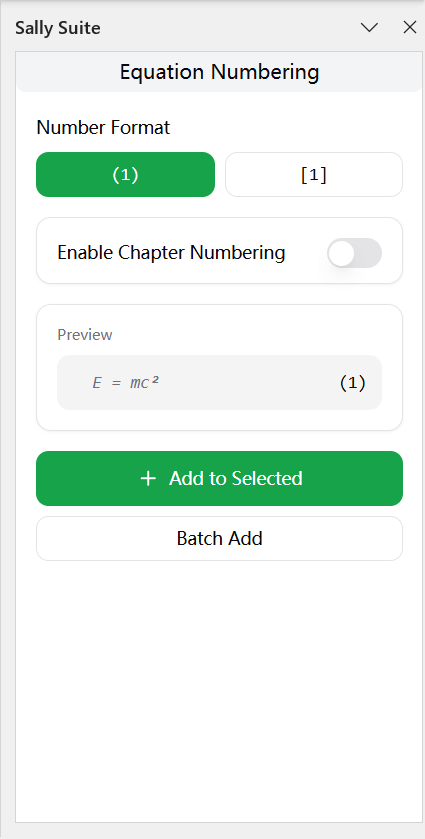 Open the Equation Numbering sidebar from the menu.
Numbering a Single Equation
Sally allows you to choose between two common numbering formats: parentheses () and square brackets [].
- Select the equation you wish to number.
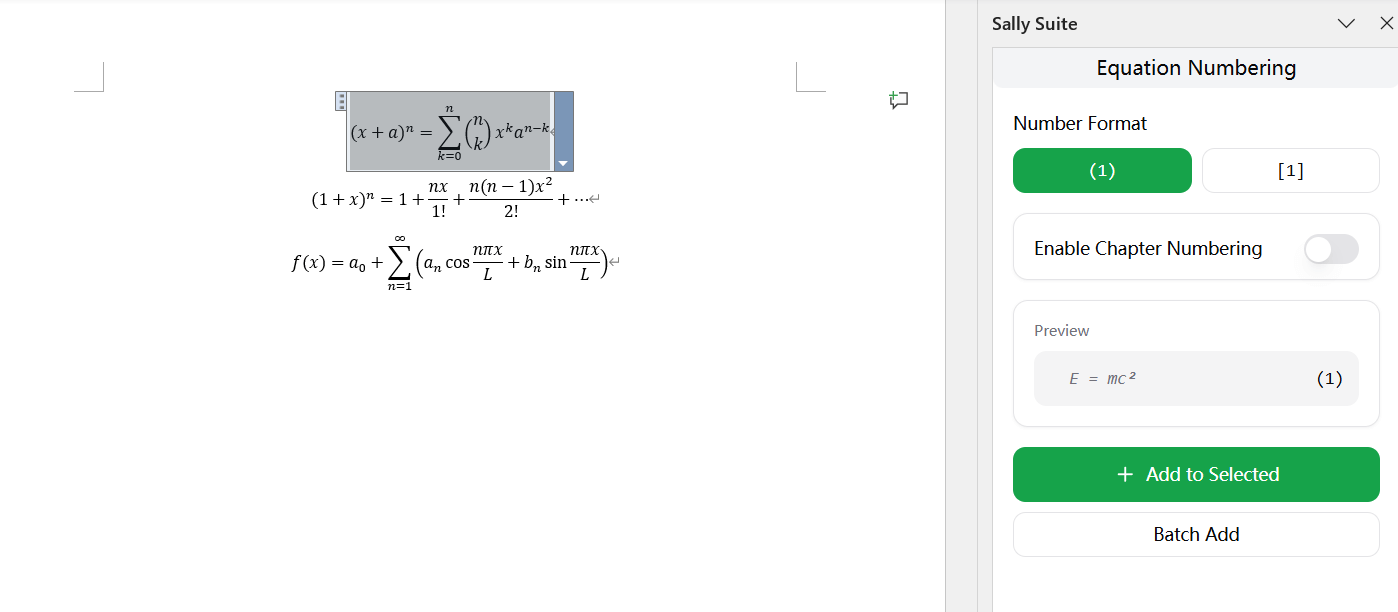
- Click the Add Number to Selected Equation button in the sidebar.
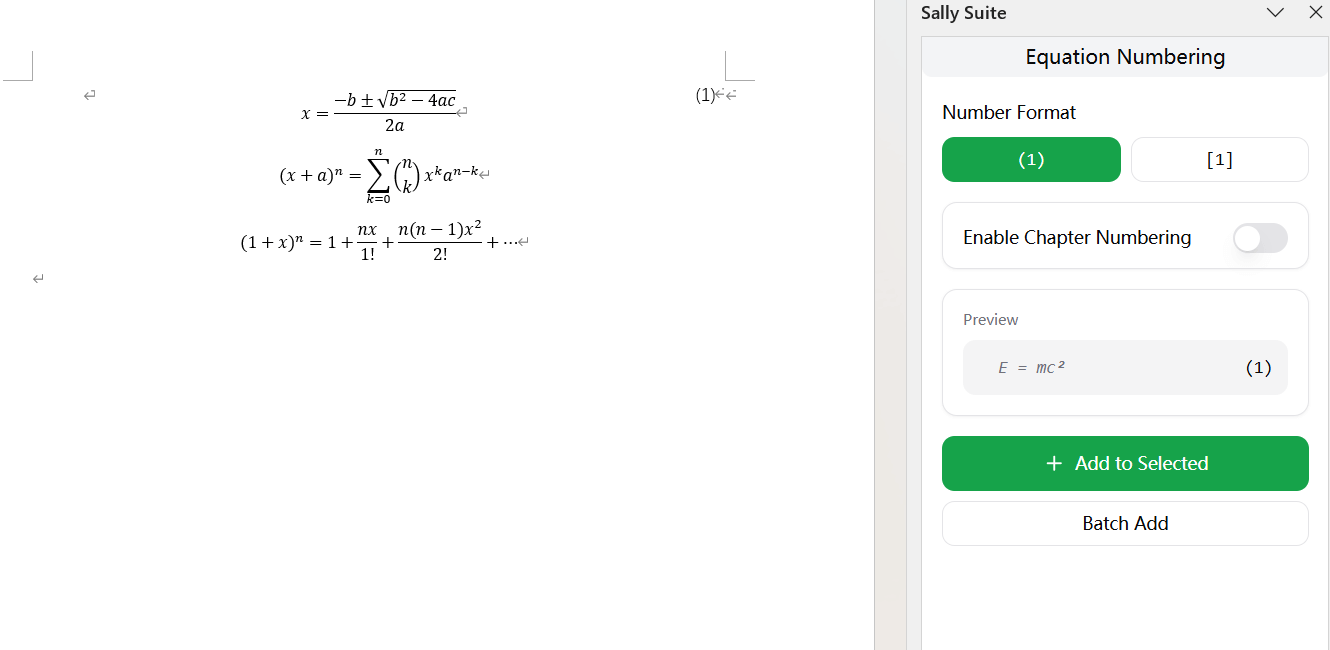 Applying numbering to a selected equation.
Batch Numbering
For documents with many equations, the Batch Numbering feature can automatically add numbers to all block-level equations at once, saving you significant time.
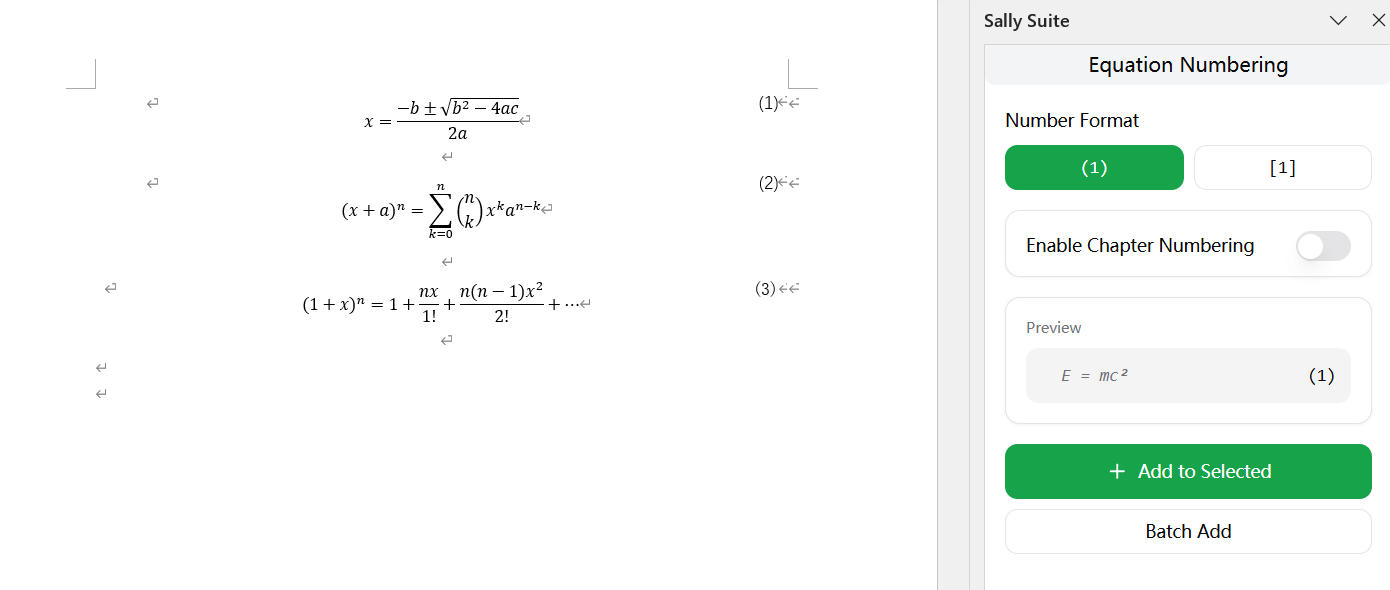 Automatically number all equations in the document.
Include Chapter Numbers
If your document requires chapter-based numbering (e.g., (1-1), (2-1)), you can click Enable Chapter Numbering.
Note: For this feature to work correctly, ensure your chapter titles are formatted using the "Heading 1" style. Sally uses style references to dynamically retrieve the chapter number.
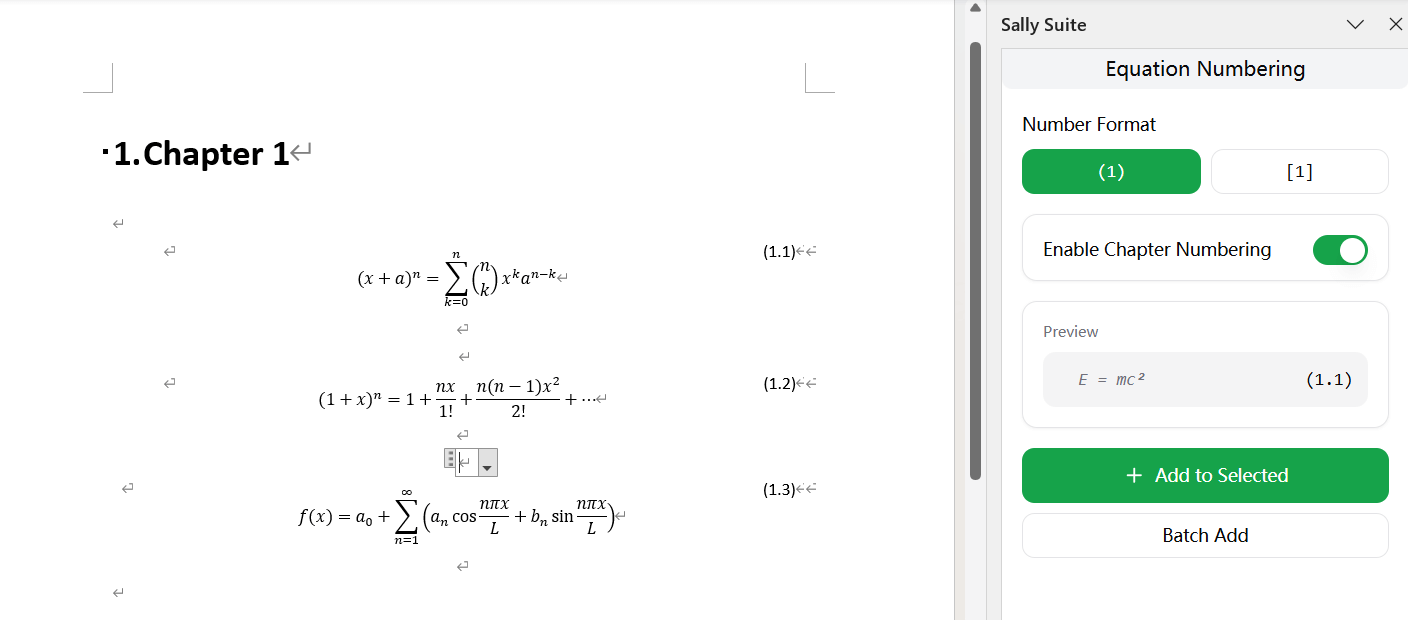 Enable chapter-based numbering for equations.
How Equation Numbering Works
Sally implements equation numbering using a borderless, three-column table layout:
- The Middle Cell contains the equation, centered.
- The Right Cell contains the equation number, right-aligned.
The numbering itself is generated using Word Field Codes. This ensures that numbers update automatically if you add or remove equations. You can view or toggle these codes by pressing Alt + F9, or by right-clicking the number and selecting "Toggle Field Codes".
Field Code Explanation
The underlying field code is:
{STYLEREF 1 \n \* Arabic \* MERGEFORMAT}-{SEQ Equation \s 1 \* MERGEFORMAT}
Here is a breakdown of what each part does:
- STYLEREF 1: A Style Reference field that pulls the paragraph number from the nearest text styled as "Heading 1".
- \n: Tells Word to display the paragraph number (chapter number) instead of the full heading text.
- * Arabic: Formats the number using Arabic numerals (1, 2, 3, etc.).
- * MERGEFORMAT: Retains any manual formatting (like font size or bolding) when the field is updated.
- -: A literal separator character between the chapter and equation numbers.
- SEQ Equation \s 1: A Sequence field that generates an incrementing number. "Equation" is the list name, and
\s 1tells it to restart numbering at each Heading 1.
Cross-Referencing
If you want to refer to a numbered equation elsewhere in your text (e.g., "as shown in Equation 1-1"):
- Go to the References tab in Word.
- Click Cross-reference.
- Under Reference type, select Equation.
- Choose the desired equation number from the list and click Insert.
How to Install
Microsoft Word
Search for "Sally" in the Word Add-ins store (Office Store) and click Add.
WPS Office (Windows only)
For WPS users, you can install the plugin via the following link: WPS Installation Guide (opens in a new tab)
Note: Please ensure WPS Word is open before starting the installation. This version is currently only compatible with Windows.